Booking Planner is a floor-plan booking surface that runs inside SharePoint, with everything else that the booking flow drags along with it. The floor plan and the list view share the same data. The booking dialog can pull catering and AV requests into the same reservation. The Outlook calendar event is created when you confirm. Reception staff and Executive Assistants book on behalf of others through Azure AD-backed roles. External visitors can be pre-registered from an Outlook calendar invite and checked in at the desk. The admin panel turns floor-plan configuration from a spreadsheet job into a drawing one. The pages below walk through each of those, with screenshots from the actual product.
Two ways to book
Pick the layout that suits the moment. Both views read from the same data, so switching never costs you anything.
Floor plan view
An interactive plan of your real office. Desks and rooms drawn where they actually sit. Click an item to see its details and book it. The default for most users.
List view
A structured tabular view of available spaces, with filters and sortable columns. The right surface for users who prefer to scan a list or for keyboard-driven workflows.
A toggle at the top of the web part switches between the two. Same data, same filters, same updates: just two ways of looking at the same office.
Three time slots, not endless dropdowns
Booking Planner uses fixed time slots so booking is predictable and the conversation is consistent across the team.
Morning
9:00 AM to 1:00 PM. The slot for early-shift workers, school-run parents, and morning collaboration.
Afternoon
1:00 PM to 5:00 PM. The slot for afternoon meetings, post-lunch focus time, and split-shift workers.
Full Day
9:00 AM to 5:00 PM. The default for a normal office day, and the slot most users pick.
You can book up to three months ahead. One booking per slot per user; the system blocks overlapping bookings so nobody can hoard the best desk for the whole month.
Book in seconds without leaving the page
Booking Planner is built around the gesture: click a desk on the plan and the booking dialog opens with date and time pre-filled.
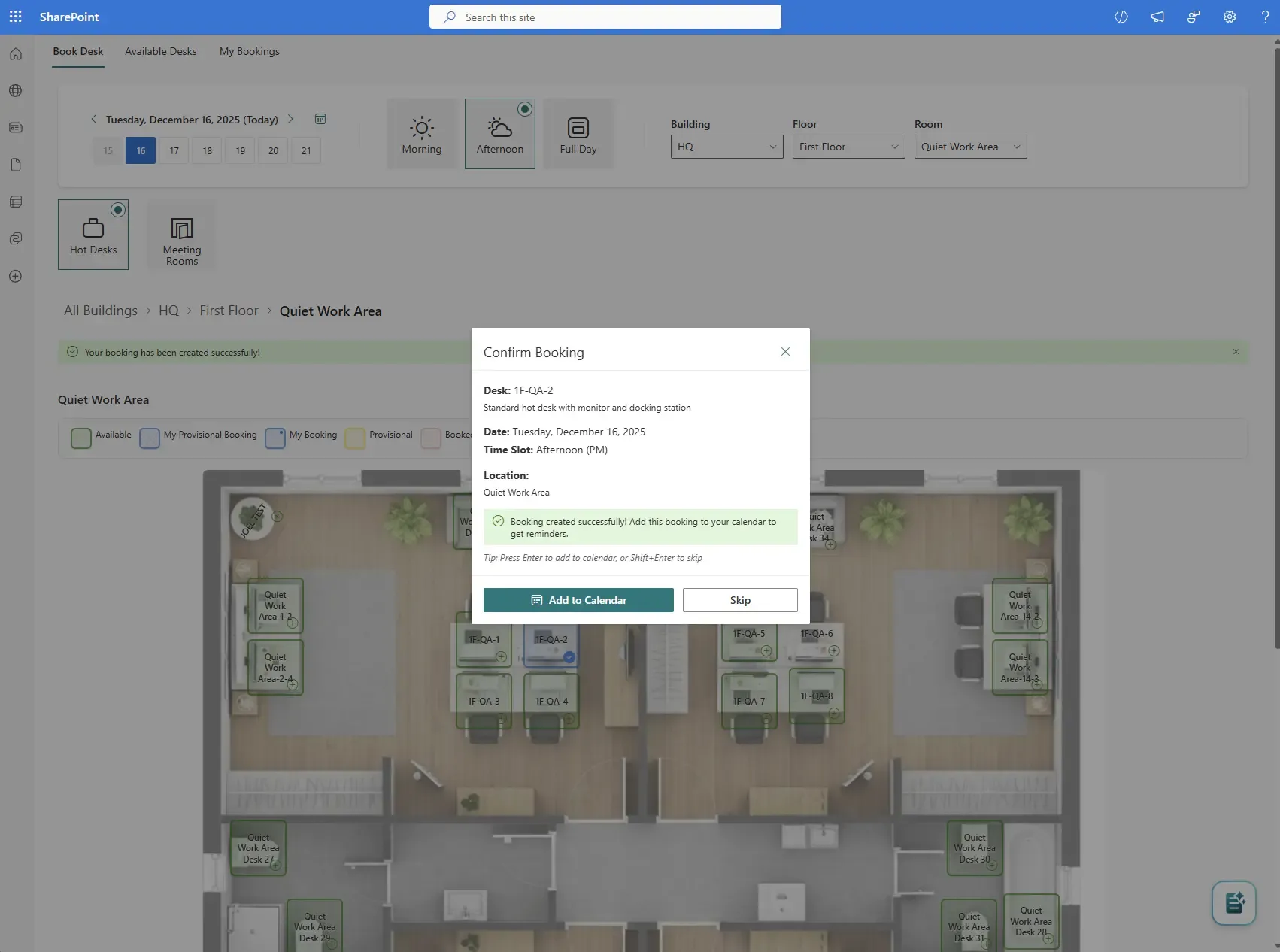
One click to book, one click to add to your calendar
The confirmation dialog shows the desk name, the room, the floor, the date, and the slot. Confirm to book. The dialog stays open with an Add to Calendar button: download an .ics file that opens in Outlook, Google Calendar, or Apple Calendar. Optionally, your admin can enable automatic Outlook event creation so every booking lands directly in your calendar with no manual step.
Find what is free, fast
A booking view is only useful if the right space surfaces quickly.
My Bookings: your personal queue
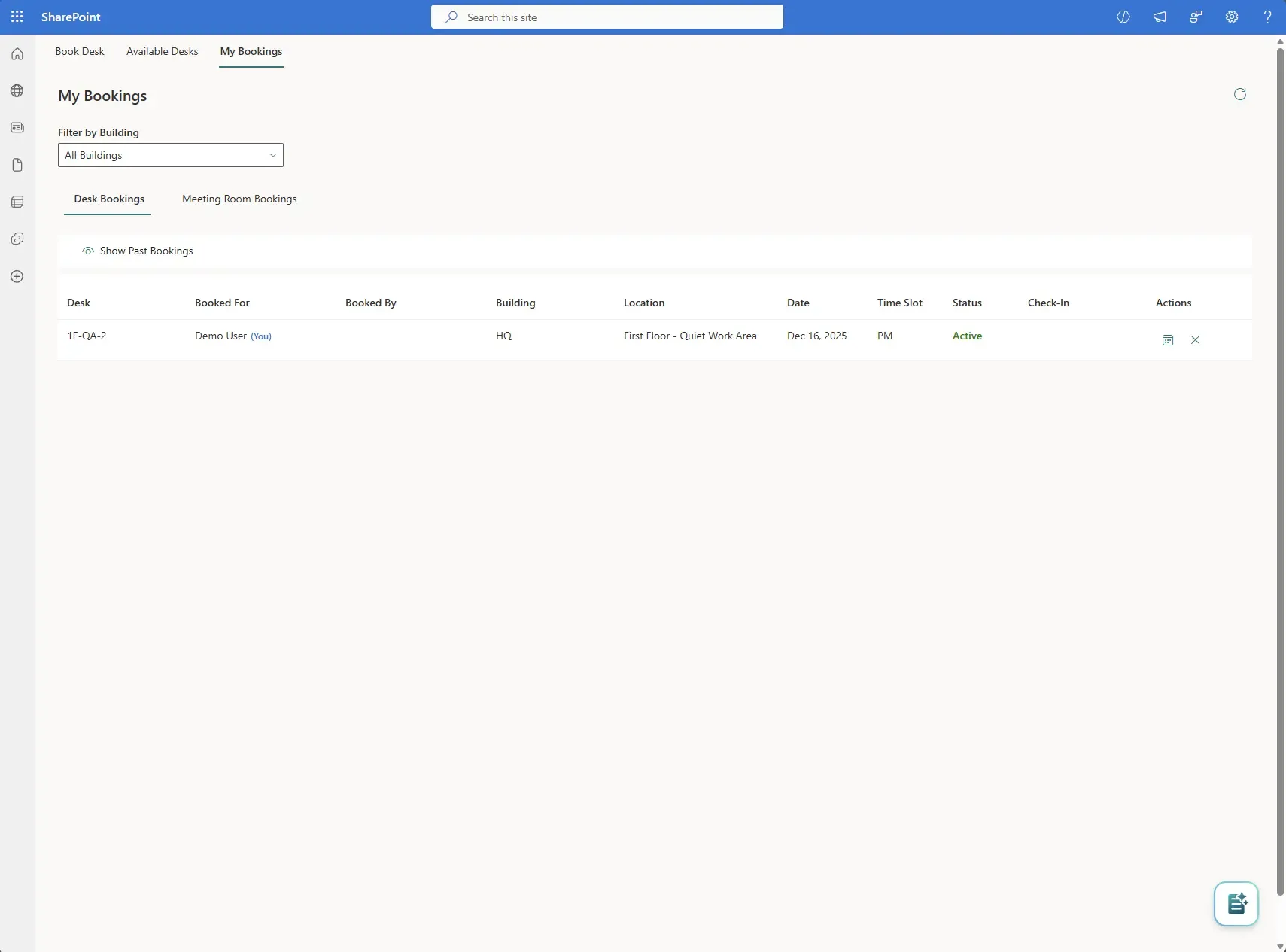
Every booking you make lives in your personal My Bookings page. See every upcoming reservation in date order; show or hide history; download the calendar event for any booking; cancel with one click. Direct edits aren’t supported (cancel-and-rebook is the model); the cancellation releases the desk for the next person immediately.
Workspace setup, visually
The single biggest setup decision is the floor plan itself. Booking Planner makes it a drawing job, not a configuration spreadsheet.
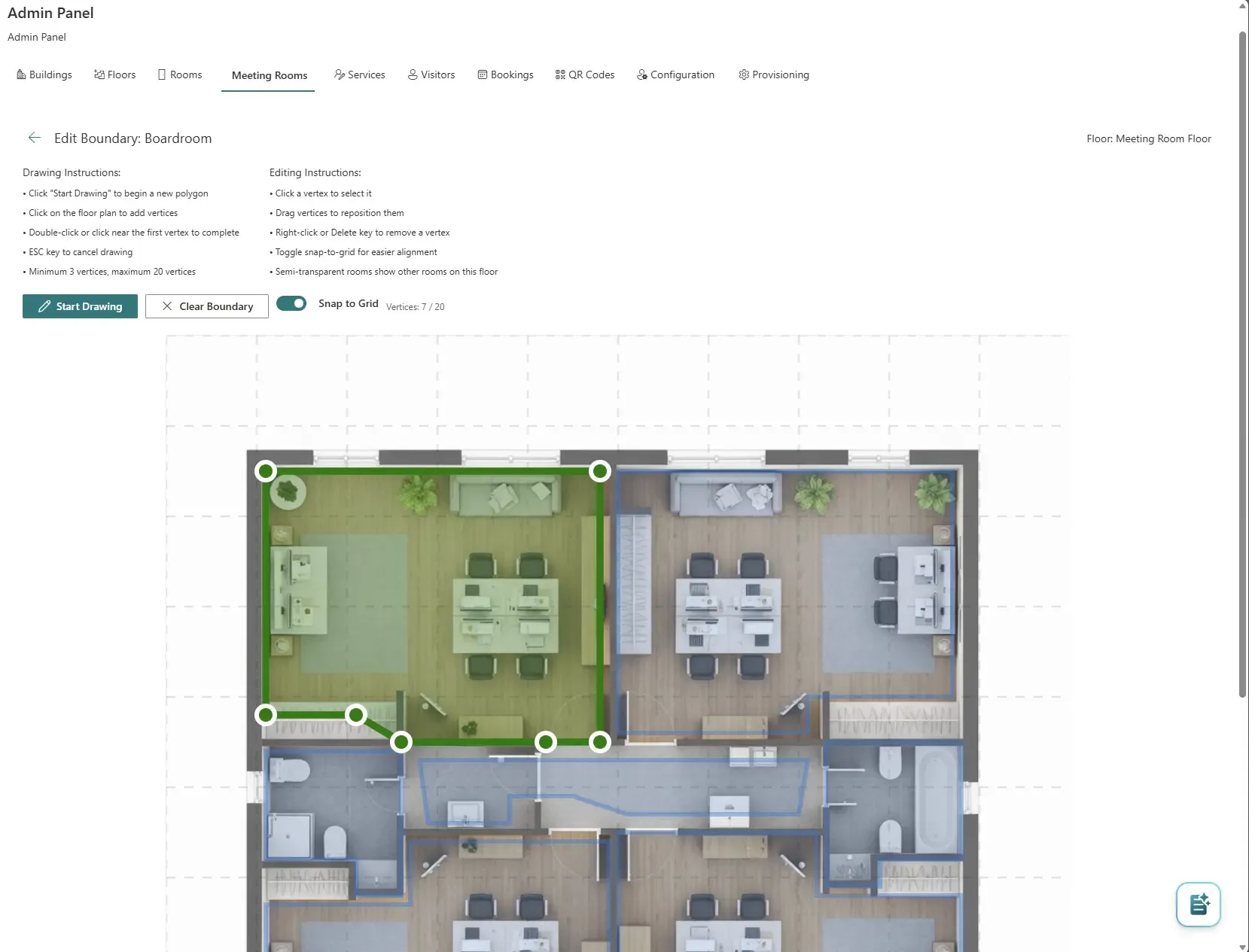
Draw rooms and zones on the plan
Admins upload a floor-plan image (PNG, JPG, SVG) and draw polygon boundaries directly on it: rooms, zones, desk areas. Each shape becomes a bookable item with its own metadata (capacity, equipment, owner). The Grid Editor places desks inside each room with click-to-add and drag-to-reposition; room sizes range from a 1x1 to a 20x20 grid.
Floor-plan images can come from three sources: upload from your computer, pick from the existing SharePoint Shared Documents library, or paste a URL. The image goes straight into your tenant’s document library, so it’s governed alongside the rest of your SharePoint content. Edit boundaries any time the office layout changes; bookings continue to work as the plan evolves.
QR check-in for utilisation data you can trust
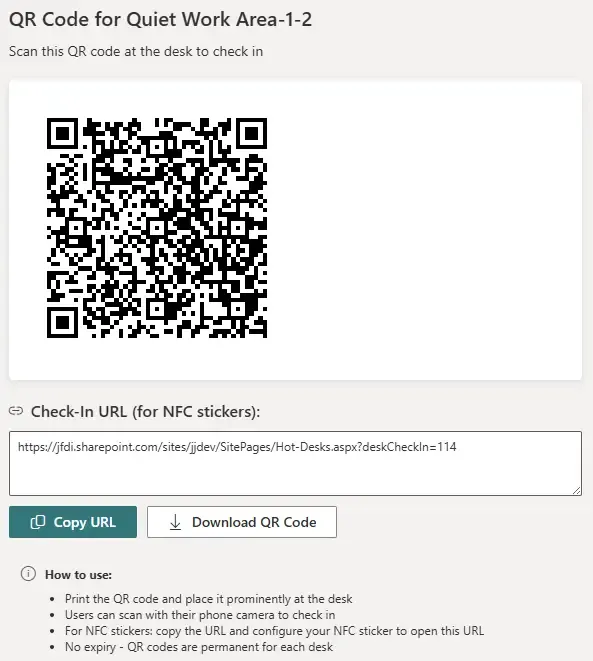
A booking is intent; a check-in is reality. Without check-in, your utilisation reports are bookings, not occupancy.
Services bundling: catering and AV with the room
Meeting room bookings can bundle services right inside the booking dialog. Catering, AV, and any other configurable service appears alongside the room with a status badge (Requested, Approved, In Progress, Completed, or Cancelled). Admins manage the service catalogue, and the booking flow brings the services into the conversation at the right moment.
Catering
Add catering to a meeting room booking in the same dialog. Status tracked through approval and delivery; updates visible to the booking owner and to the catering team.
AV and equipment
Bundle AV setup, screens, or other equipment requests. Status changes from Requested through Completed; admin tools let your AV team manage the queue.
Visitor management: from invite to reception
The Visitor Management module bridges the digital booking world and the physical building. When a meeting is scheduled in Outlook with external attendees, the system can pre-register those attendees as visitors, send them a welcome email with arrival details, and notify the host via Microsoft Teams when they check in at reception.
Three visitor types
External visitors are traditional guests: clients, vendors, consultants. They get the full welcome flow with pre-arrival email, reception check-in, and optional temporary badge or QR for touchless building access.
Internal visitors are colleagues from a different office. Useful for capacity planning and emergency response: security knows who is in the building today.
Contractors are between the two. Regular access without full employee privileges; the system tracks visit patterns and host relationships over time.
The lifecycle in the system
Every visitor moves through the states: Expected, Checked In, Checked Out, with No Show for visitors who never arrived. Reception can search and check in with one click; the host gets a rich Teams card with action buttons (“On my way”, “Ask them to wait”). Notification frequency is configurable per host to prevent fatigue at large gatherings.
For emergency evacuation, the system can generate a report of all currently checked-in visitors by location. Badge tracking ensures temporary visitor badges are accounted for and returned.
The visitor module is built on a solid services foundation today; the reception kiosk, host dashboard, and full Outlook auto-registration ship progressively over the coming releases. Everything else described above is already available on every tier.
Role-based permissions for reception and assistants
Some teams need someone other than the desk owner to make a booking. Executive Assistants book for the exec they support; reception books for a visitor walking in. Booking Planner ships role-based permissions backed by Azure AD security groups.
Assistant role
Full booking management. Create, modify, and cancel bookings for any user; edit any field including date, time, desk, and user. Ideal for EAs and administrative staff.
Reception role
Limited management. Create and cancel for any user; reassign which desk is booked, but cannot change dates, times, or who the booking is for. Ideal for front desk staff.
Roles are assigned via Azure AD security groups (configured in the admin panel using the exact group display name). Microsoft Graph API permissions for User.Read.All and GroupMember.Read.All are required and consented in the SharePoint admin centre.
Group Calendar Integration
When an assistant or reception creates a booking on behalf of someone else, the Outlook calendar event can land in a shared M365 Group or Shared Mailbox calendar instead of the creator’s personal calendar. This gives the whole reception or assistant team a single visibility surface for the bookings they manage, while still attributing the booking to the right user.
Lives where your team already works
SharePoint pages
Add Booking Planner to any SharePoint page in your tenant. Sits alongside the rest of your page content, follows the page’s theme.
Microsoft Teams
Add it to a Teams channel as a tab so the people who need to book see the plan without leaving the conversation. Full support on desktop, web, and mobile Teams apps.
Outlook web and desktop
Pin Booking Planner as a personal app for quick booking inside Outlook. Narrow-pane optimised with zoom and pan controls for the task pane.
Microsoft 365 home
Surface the booking flow on the Microsoft 365 home pane so users land on the plan when they start their day.
Mobile note: Outlook on iOS currently has a platform-level issue (a Microsoft platform bug, not specific to Booking Planner) that prevents SPFx apps from loading. Until Microsoft resolves it, the recommended mobile workflow is the Microsoft Teams mobile app, which works fully, or Outlook Web on the device’s browser.
Admin panel for facilities and operations
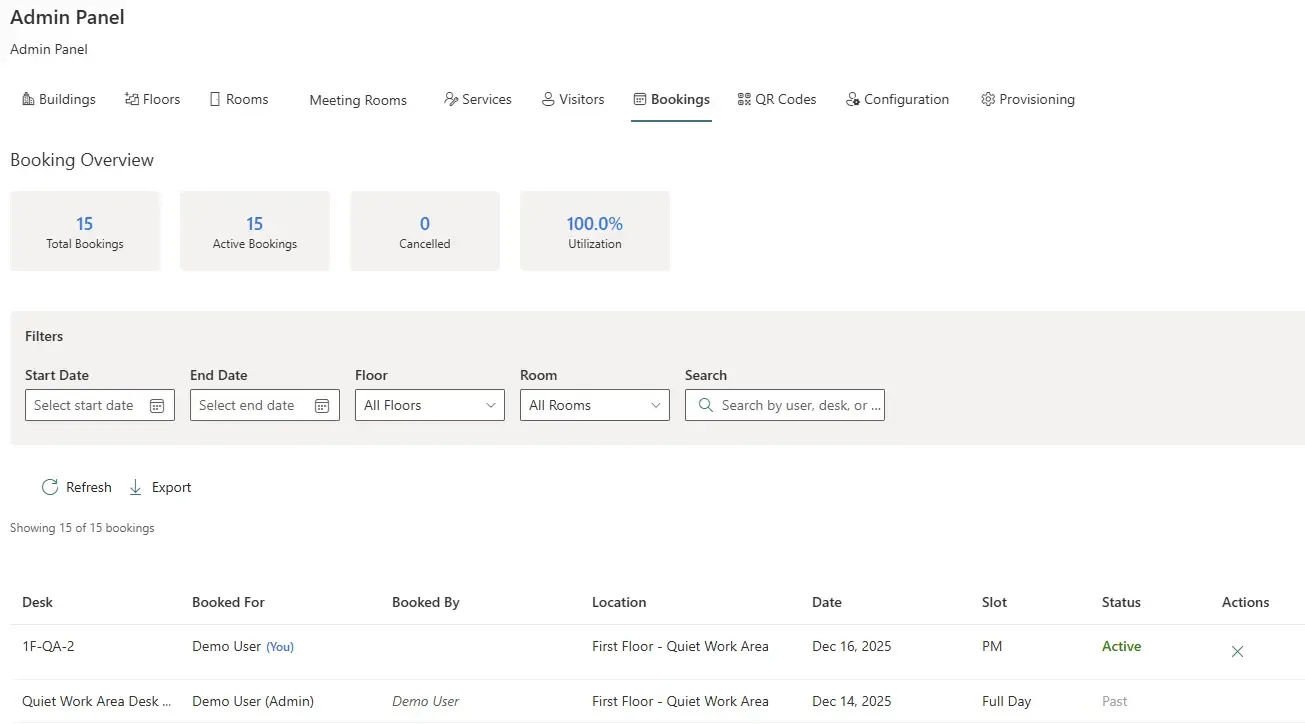
The admin panel gives facilities and operations teams the visibility they need to plan space, set policy, and intervene when things go wrong.
Compatibility and accessibility
Compatibility
Booking Planner is a SharePoint Framework (SPFx) web part for SharePoint Online, Microsoft Teams, Outlook (web and desktop), and the Microsoft 365 home. Runs in modern browsers (Edge, Chrome, Firefox, Safari) on desktop, tablet, and phone. Follows your SharePoint site’s theme; adapts to different container widths. Designed mobile-first; the desk-grid view supports zoom and pan controls for narrow surfaces like the Outlook task pane.
Accessibility
Built to WCAG 2.1 AA standards. The list view is the keyboard-driven equivalent of the floor plan: every booking can be made without a pointer. Arrow-key navigation across the desk grid, Enter to select, Esc to close dialogs. Visible focus indicators, ARIA labels on plan items, and accessible status messages via live regions.
What we have said no to (so far)
Workspace tooling is a category that swells unchecked if you let it. Booking Planner has a clear line on what belongs inside the booking flow and what doesn’t. The list below is the running record of feature requests we have declined, with the reason in each case. Some of these are open questions that may shift if customer demand makes the case.
No recurring bookings yet
Frequent customer ask; coming in the v2 wave. Today each booking is made individually. Workaround: book the same desk for the days you need in one session of the flow.
No direct booking edit
To change an existing booking, cancel it from My Bookings and create a new one. Direct field-by-field edit isn’t supported on purpose; cancel-and-rebook keeps the audit trail simple and frees the original slot immediately.
No two-way Outlook calendar sync yet
Today the sync is one-way: a booking creates an Outlook event. Full two-way sync (Outlook event changes flowing back to the SharePoint booking) is planned for the v2 wave with the Outlook plugin upgrade.
No standalone mobile app
Booking Planner runs in any modern mobile browser and in the Teams mobile app. We have not shipped a separate iOS or Android app because the mobile web experience is good enough and avoids a second install per user.
No catering or AV provider integration
The Services Module tracks Catering and AV requests against bookings, with status tracking through to Completed. Integration with a specific catering provider’s order system is out of scope; Booking Planner gives your catering team the queue, not the supply chain.
No client-side export beyond SharePoint native
SharePoint lists already export to Excel natively, and that export is more trustworthy than anything we could generate client-side from a filtered view of bookings.
A booking surface stays useful by being narrow at the front and pragmatic at the edges. The list above is the boundary; the surface itself is what comes through it.
Licensing tiers
Booking Planner is available in three tiers, priced per user per month (Free is free). Every feature described on this page — floor-plan and list-view booking, multi-location, services bundling, the admin panel, role-based permissions, and Visitor Management — is available on every tier today. Booking Planner doesn’t gate any feature by tier yet; tier-based feature gating is on the roadmap, and this page will be updated the moment it ships.
| Free | Standard | Enterprise | |
|---|---|---|---|
| Every feature on this page | ● | ● | ● |
| Licence required | No | Yes, per user | Yes, per user |
| Support | Community | Business hours | Priority |
Free requires no licence assignment at all — every feature above, on any number of desks and rooms, for as many users as you like.
Standard and Enterprise are for organisations that want a paid support relationship today, and want to be licensed ahead of the tier-based features on the roadmap; Enterprise adds priority support on top of Standard’s business-hours support.
Booking Planner doesn’t enforce any tier-based restriction yet. Every install includes a 30-day Enterprise trial, starting once an administrator approves the JFDI Licensing permission in the SharePoint admin centre — see the pricing page for full details.
Ready to put your office on a floor plan?
Booking Planner is available free on the Microsoft Marketplace, with a 30-day Enterprise licence included so you can try every feature.