Your office is a floor plan. Your booking tool should be too.
Most desk-booking products force you to navigate a list of room names, then a grid of slots, then a confirmation page, then a separate calendar. By the time you reserve a seat near the team you wanted to sit with, you’ve forgotten why you opened the tool. Booking Planner skips the list. You see the office, you click a green desk, you confirm.
It runs inside SharePoint, Microsoft Teams, and Outlook, with the same plan in all three. Pick the date, pick a slot (Morning, Afternoon, or Full Day), and the desks free for that window light up. Filter by building, floor, or room type. Click. Confirm. Your booking lands in your Outlook calendar on the way out. The whole thing is configured from the standard SharePoint web part properties pane, with no developer involvement after the initial install.
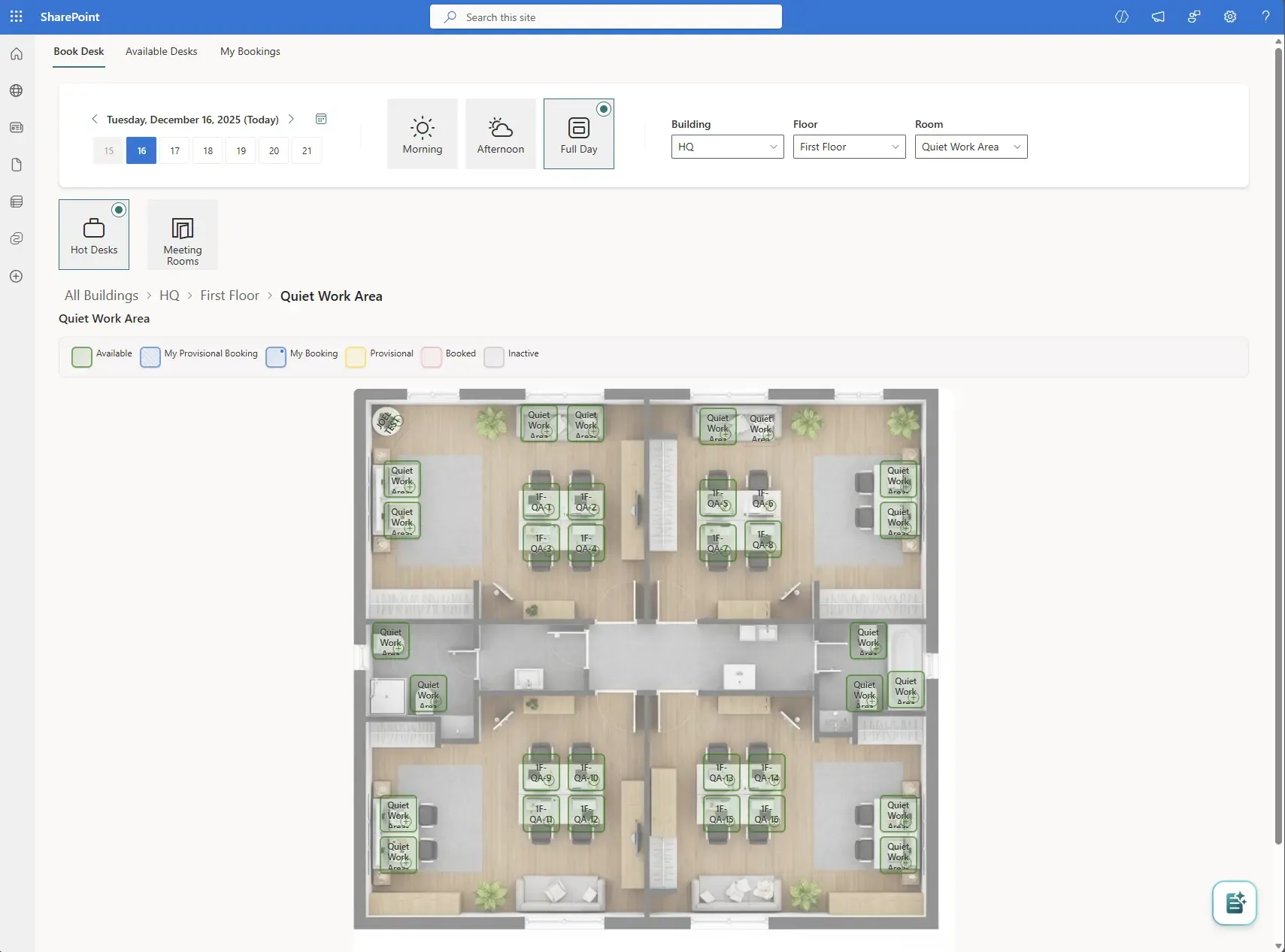
Visual desk and room booking, directly inside SharePoint
The grid is your real office. Green desks are free, red are booked, blue is yours, grey is inactive. Hover for the name and amenities; click to reserve. Up to three months in advance, on the device you already have.
Floor-plan first
Drawn polygons on a real plan of your office. Desks where they actually sit, rooms where they actually are. A list view sits behind a toggle for users who prefer to scan.
Lands in your calendar
Every booking generates an .ics for Outlook, Google Calendar, or Apple Calendar, and creates the Outlook event automatically the moment you confirm.
QR check-in on arrival
A permanent QR per desk, printed once. Users scan on arrival; the booking is marked fulfilled. Your utilisation report measures actual occupancy, not just intent.
Why teams choose Booking Planner
The booking is the start, not the whole story
A meeting room booking can pull a Catering or AV request into the same dialog, with status tracking from Requested through Approved to Completed. An Executive Assistant or reception-team member can book on behalf of someone else through role-based permissions backed by Azure AD groups. An external attendee on an Outlook calendar invite can be pre-registered as a visitor, sent a welcome email with arrival details, and checked in at reception with a Teams card notifying the host the moment they arrive. The booking flow is the front door; what sits behind it depends on the tier you pick and the team you run.
Why a plan, not a sheet
“Our team finally stopped fighting over the booking sheet. The plan tells them what is free; they pick it; that is it.”
That is the value Booking Planner is built around. Booking Planner is deployed inside JFDI client tenancies today; customer stories will land here as soon as those customers are willing to be named. JFDI built bespoke booking platforms for clients for years before Booking Planner became a product; the long road to here is documented in the original case study.
A SharePoint app, not a SaaS
The booking records are your records
Bookings sit in SharePoint lists in your tenant, alongside the floor-plan definitions and the visitor records. Booking Planner reads and writes those lists. List content stays in your SharePoint. The licence check identifies the user and tenant to read that user’s Marketplace entitlement. By design, booking details also go to the people involved: bookings are written to their Outlook calendars, Teams meetings are created where needed, and the people being booked are emailed.
Take it out, the office still works
Uninstalling Booking Planner removes the web part and the visual surface. The booking history, the floor plans, and the visitor records remain in SharePoint, governed by the retention and permission rules you already have. There is no second system to keep in sync, and no migration when you change your mind.
See the features
Floor plans, time slots, calendar integration, QR check-in, admin panel, services bundling, visitor management.
Browse the use cases
Hybrid teams, facilities, HR and workplace ops, meeting organisers, reception, multi-location offices.
Ready to put your office on a floor plan?
Booking Planner is available free on the Microsoft Marketplace, with a 30-day Enterprise licence included so you can try every feature.